
Text to Image Generator

Country voice

Robot vocal

Neon cover

Country star

Cowboy melody

Color dissolve

Young studio voice

Cool cat

Rock portrait

Golden jazz

Dream-pop portrait

Studio vocalist

Soul stage

Neon artist

Songwriter room

Vintage vocal

Studio session

Nordic voice

Animated groove

After-hours cover

Monochrome cover

Warm window

Crimson portrait

Vintage band

Sunset guitarist

Young live voice

Pastel band

Neon guitarist

Red stage
A CLOSER LOOK
Text to Image Generator
Describe a subject, scene or illustration when you do not have a source image. Turn a written idea into a visual concept for a creative project, a post or cover artwork.
Create an image from a written idea. Describe the subject, setting and visual direction, then choose an available image model and output format.
01
Turn a written idea into an image
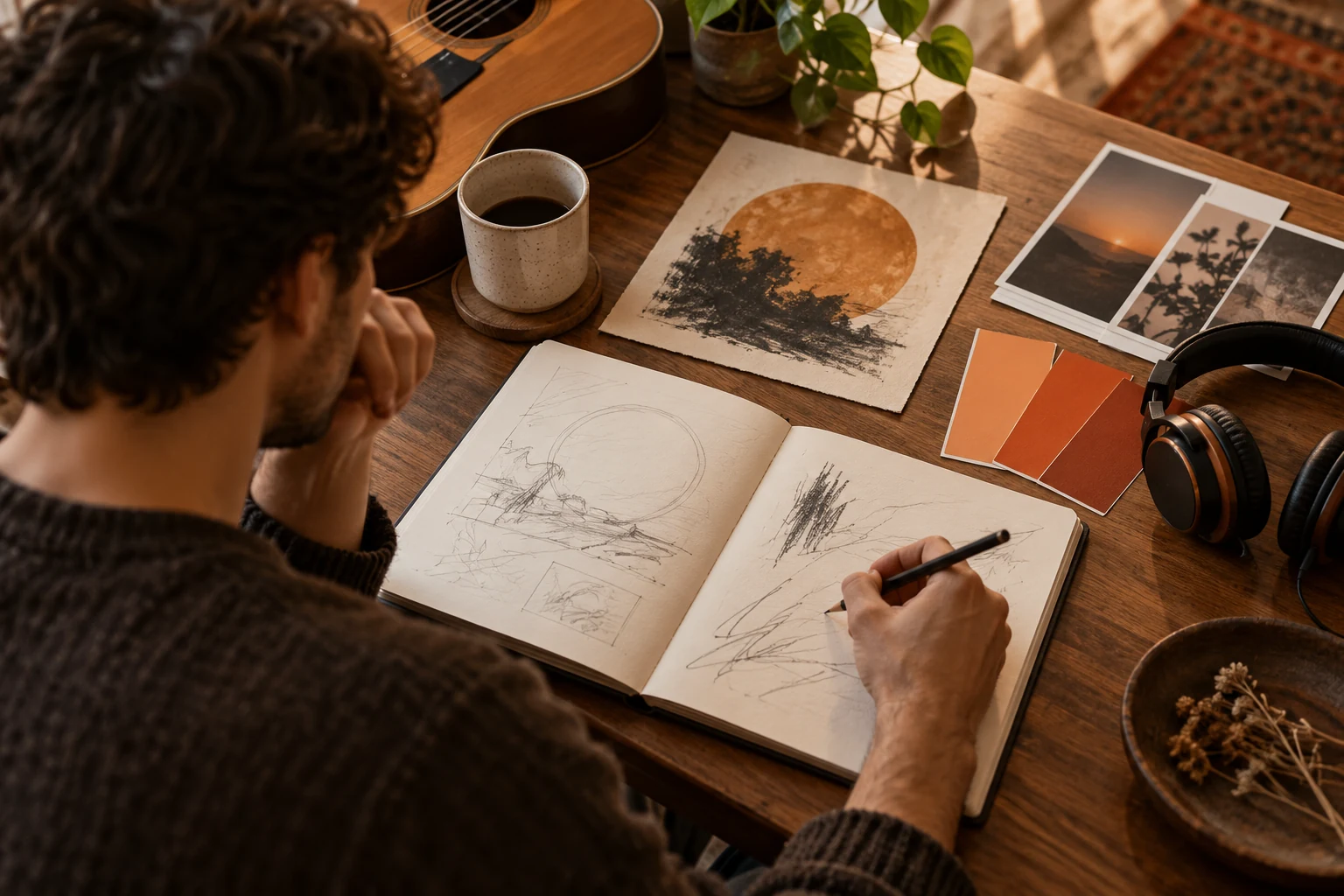
Begin with what the viewer should see: a person, an object, a landscape or an imagined setting. Describe the subject, its surroundings and the action or atmosphere, then add a photographic or illustrated treatment that fits the idea. This workflow creates a new image from words without an uploaded source picture.
For a music-cover concept, for example, an acoustic track might suggest a guitar in a warmly lit room, as in the editorial illustration here. The same approach can describe other scenes, artwork and visuals for a post. Use image to image instead when a picture you already have should guide the result.
02
Direct the composition and light
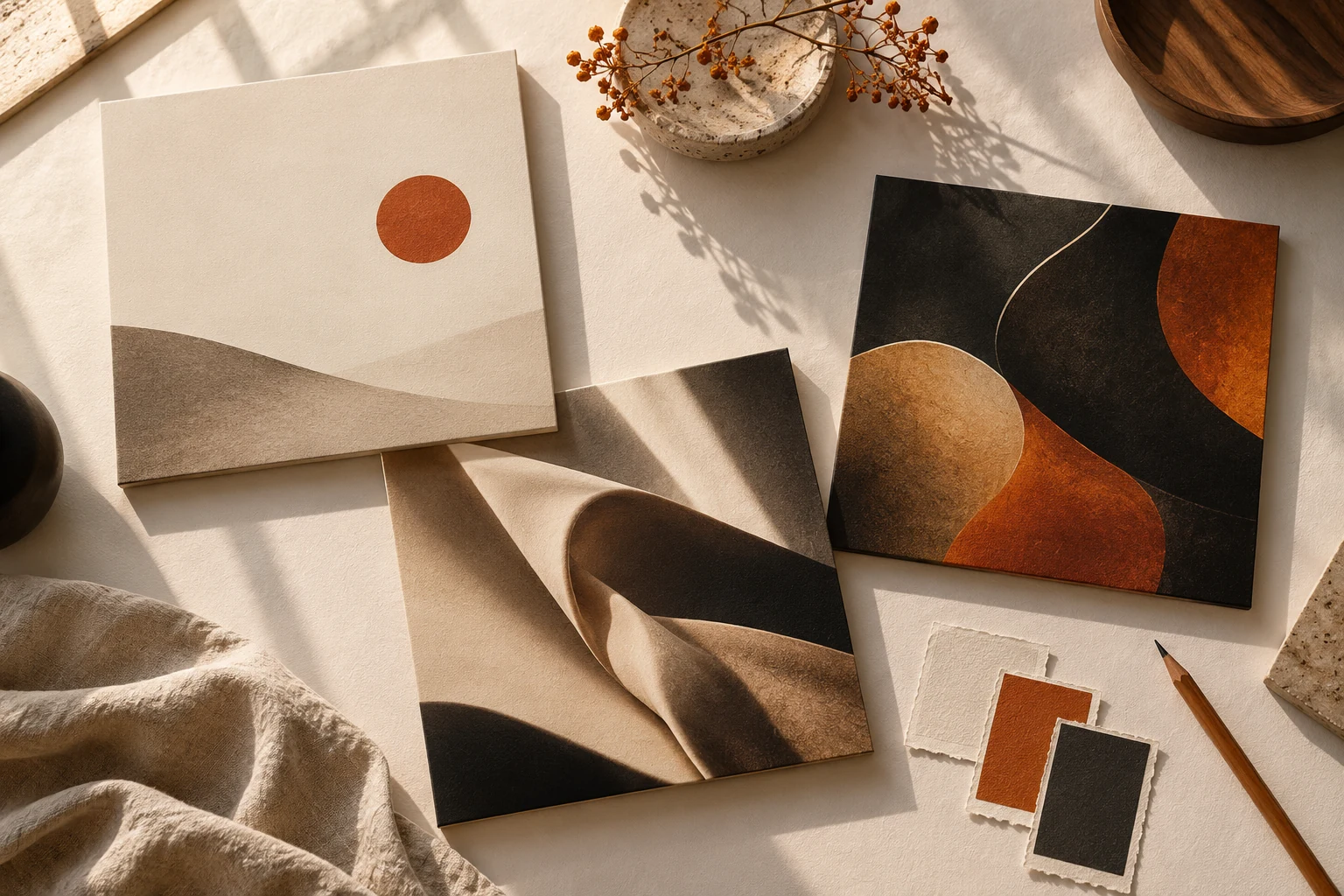
Make the visual instructions concrete: where the main subject sits, how close the view should be, what belongs in the background and where the light comes from. For cover artwork, leave room around the subject if you plan to add a title in a separate editor.
Choose from the aspect ratios, sizes and image-count settings available for the selected model. These controls vary by model. If you want to compare directions, change one important part of the brief at a time so you can judge what the new prompt contributed.
03
Review the image before using it
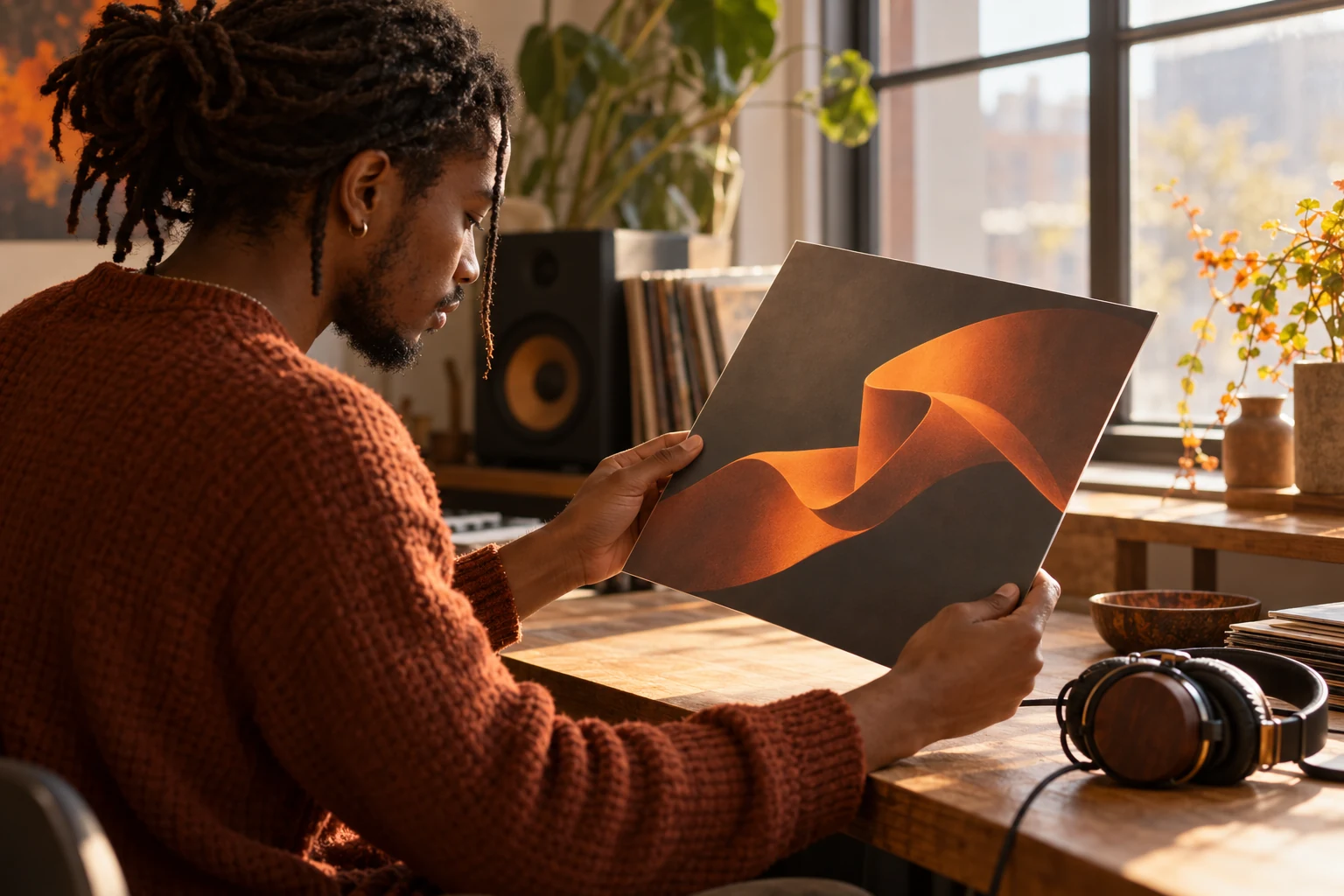
Inspect the image at full size, especially faces, hands, instrument details, edges and any lettering. A prompt describes the image you want; it does not guarantee that every detail or written word will be correct in the output.
Check the actual dimensions and composition against the destination where you plan to use the picture. Keep a useful image as a starting point for image-to-image changes, or take it into image to video when your next task is adding motion.
How to generate an image from text
- 01
Write the visual brief
Describe the main subject, its setting and the mood. Add composition, lighting and style instructions that help explain one coherent image.
- 02
Choose supported output settings
Select an available image model and use its aspect ratio, size and image-count options. Review the displayed credit cost before submitting.
- 03
Inspect and develop the result
Open the returned image, review its details and download a suitable result. Use image to image if you want to develop an existing picture further.
What to create from a prompt
- An original subject, landscape or imagined scene from a written brief.
- An illustration or character concept for a creative project.
- A still visual for a post, announcement or creative brief.
- A cover-art concept that matches the mood of a song.
Image input examples
Text to image: artwork with a clear subject
Describe the subject, composition and lighting before adding decorative details. Leave room for the crop your artwork needs.
Text to image: materials and lighting
Use texture, palette and light to guide the image. Inspect readable shapes and unwanted lettering before moving to the next revision.
About this example
Start from words and build a clear visual brief. The artwork is a licensed creative reference, not a result from the selected model.
Text to image: artwork with a clear subject
Example brief
A solitary songwriter in a blue-lit room beside an open window, quiet late-night atmosphere, natural cinematic shadows, a clear central subject and room around the edges for a music-cover crop. No lettering.
What you provide
- A written subject, composition, lighting and intended use.
What to expect
A new still image to inspect at full size before adding typography or publishing.
What to check
- Check composition, hands and objects.
- Inspect the image at the crop and dimensions needed for the release.
Licensed artwork reference; this brief is a direction to try, not its original settings.
Text to image: materials and lighting
Example brief
A neon-lit music bar at night, warm counter light reflected on dark wood, restrained cyan accents, an inviting empty foreground and cinematic composition for album artwork. No text or logos.
What you provide
- A text brief for the subject, texture and palette.
What to expect
An artwork image whose lighting and composition can guide the next revision.
What to check
- Check readable shapes and unwanted lettering at full size.
Licensed visual reference, not a BeatMelo-generated sample.
Questions about text to image
Do I need to upload an image to use text to image?
No. This workflow creates a new image from your written prompt. If an existing picture should guide the composition or subject, use the separate image-to-image tool.
What should I include in an image prompt?
Start with the subject and setting, then add the composition, lighting, colors and style that matter to the image. A focused brief is easier to review than a list of conflicting visual instructions.
Can I choose the image shape and size?
Use the aspect ratio and size options shown for the selected model. Available settings can differ between models, so check them again when switching models.
Can I generate more than one image?
Choose an image count when the selected model exposes that option. The form shows the supported count and the corresponding cost; the available choices are model-specific.
Will text or a logo render exactly as described?
Exact lettering, logos and small details are not guaranteed. Inspect any generated text closely, and add essential titles or approved logos in a suitable editor when they must remain precise.
Is this tool limited to album cover artwork?
No. You can describe other still-image subjects and visual concepts. Cover artwork is one use case; select the composition and supported output format that fit your actual project.