
Image to Image AI

Country voice

Robot vocal

Neon cover

Country star

Cowboy melody

Color dissolve

Young studio voice

Cool cat

Rock portrait

Golden jazz

Dream-pop portrait

Studio vocalist

Soul stage

Neon artist

Songwriter room

Vintage vocal

Studio session

Nordic voice

Animated groove

After-hours cover

Monochrome cover

Warm window

Crimson portrait

Vintage band

Sunset guitarist

Young live voice

Pastel band

Neon guitarist

Red stage
A CLOSER LOOK
Image to Image AI
Use a picture as the starting point when its subject or composition matters to the next version. Tell the model what to retain and what to change, then compare the edit with your source.
Upload a reference image and describe the change you want. Explore a different background, lighting or visual treatment with a supported image-editing model.
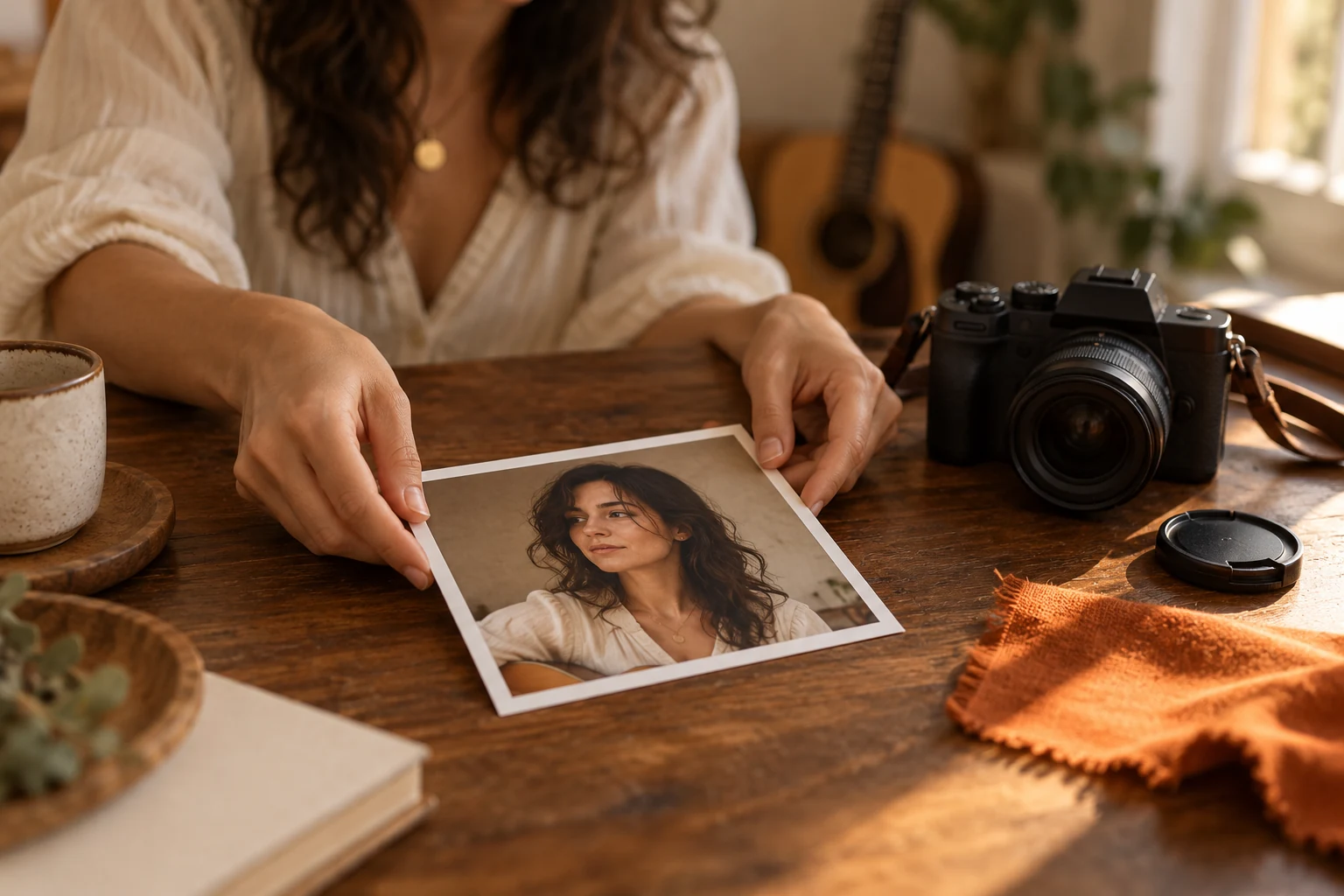
01
Start with a reference you can use
Choose a picture you have permission to process and that clearly shows the subject you want to develop. A portrait, a room, an object or an earlier artwork can provide visual context that a text-only prompt would have to describe from scratch.
Use the upload requirements shown in the tool for the selected editing model. Check that important details are visible in the reference before you submit; a new version cannot be assumed to recover information missing from the source.
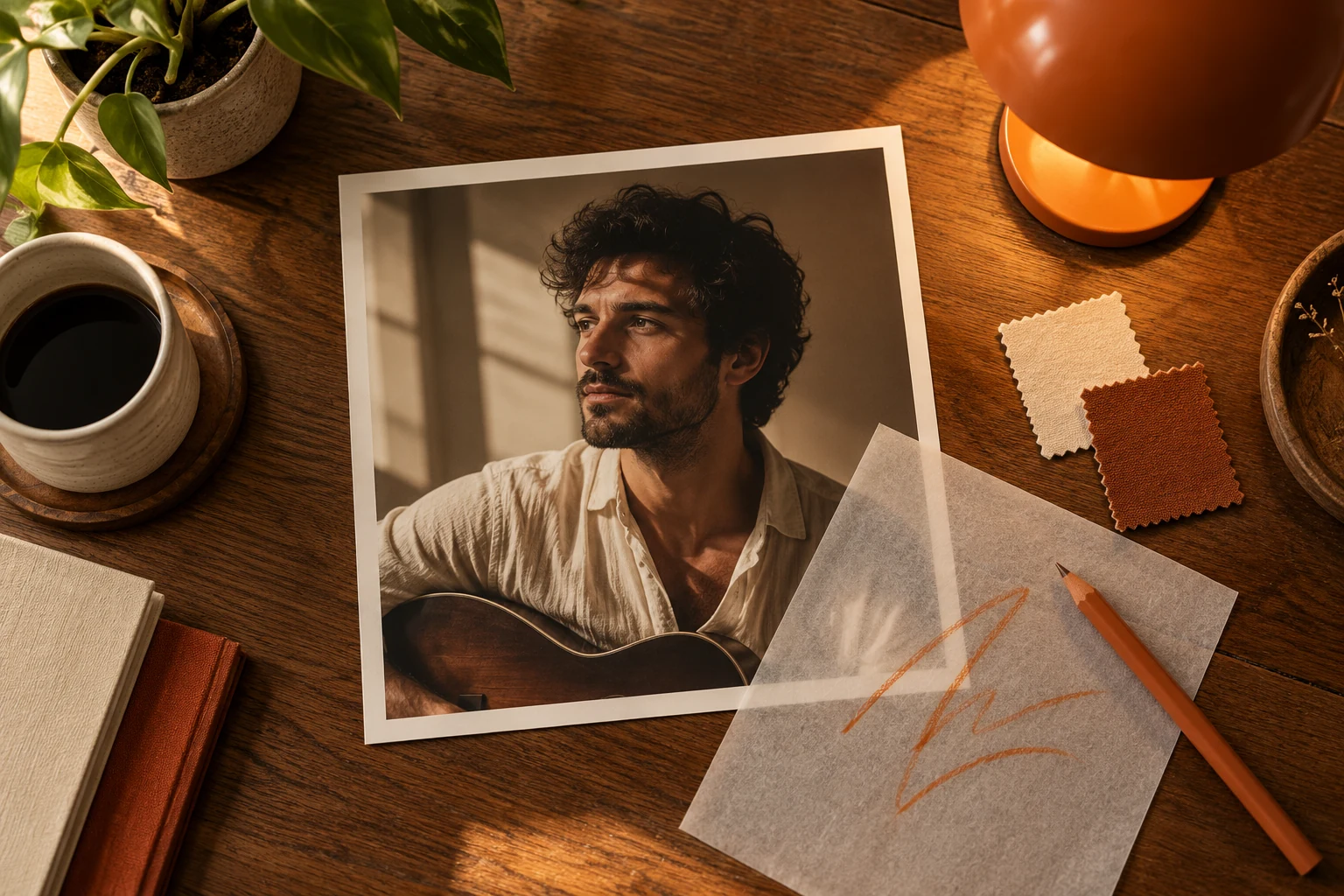
02
Describe what to retain and what to change
Separate the edit into two clear instructions. For example: retain the guitarist and the central composition, but replace a busy room with a quieter background and softer evening light. Explain the intended change instead of expecting the reference alone to communicate it.
The uploaded image guides a generated edit; it is not a promise that every unmentioned pixel, facial feature or object will remain identical. Review the model-specific output options and avoid combining so many changes that you cannot judge which instruction affected the result.
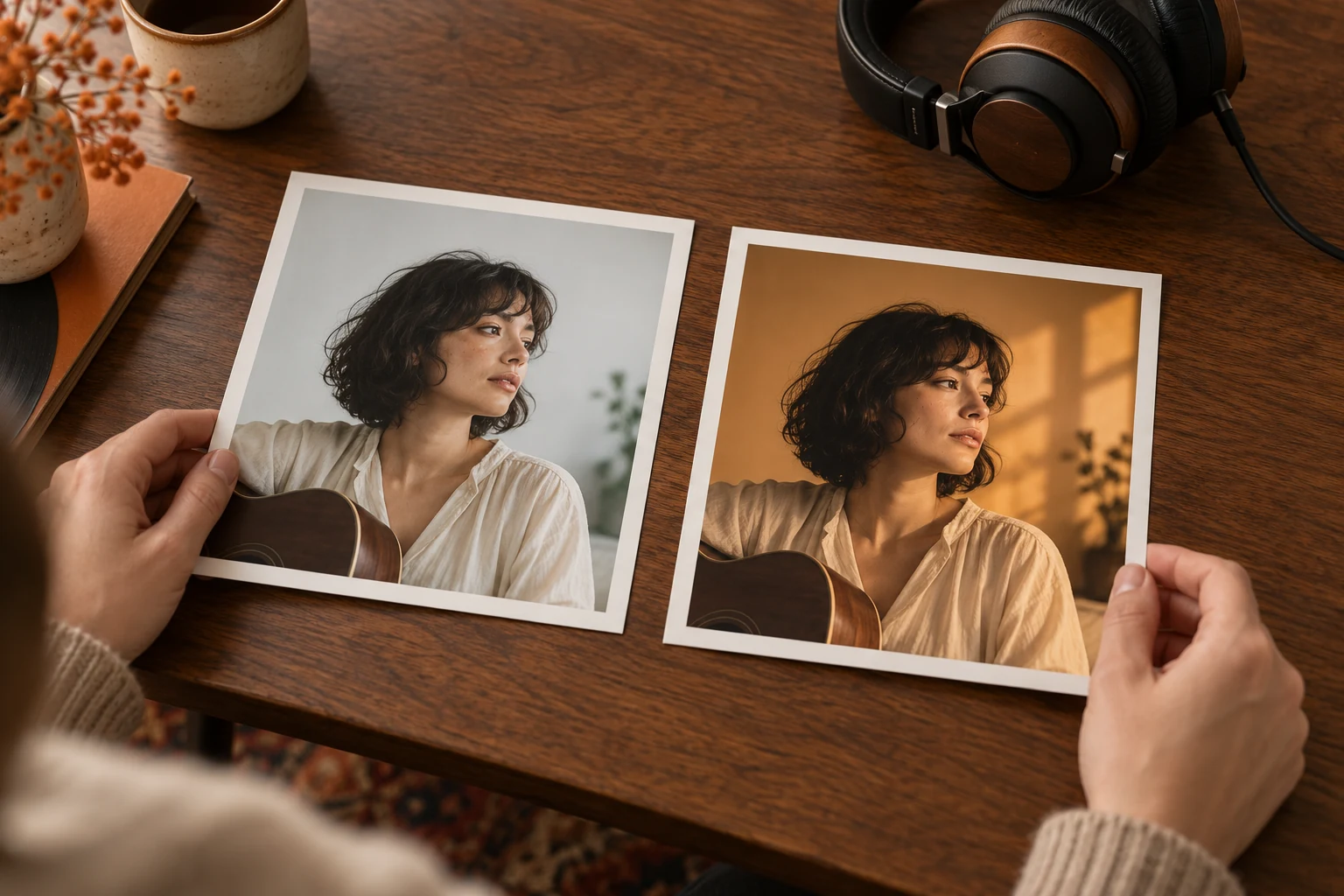
03
Compare the edit with its source
Inspect the returned picture beside the original. Check the requested change first, then examine the subject, proportions, edges and any details that needed to stay recognizable. If the edit changed something important, refine the instruction and review another version.
Keep the original reference while deciding which result fits your project. Download a suitable image after checking its actual dimensions, or use it as a starting frame in image to video. For an unrelated new concept, switch to text to image rather than forcing the source into a different task.
How to edit an image with AI
- 01
Upload the source image
Choose an image you are entitled to use and follow the file requirements shown for the selected editing model.
- 02
Write a focused edit instruction
Describe the elements to retain and the changes you want to explore. Select the output settings available for that model and review the displayed cost.
- 03
Compare the source and result
Check the intended change and inspect important subject details before choosing a result to download or develop further.
Ways to develop a reference image
- Explore a new background for a portrait or music artwork.
- Try a different lighting treatment for an existing scene.
- Develop another visual style around a recognizable source subject.
- Refine an earlier image concept before preparing a post or video frame.
Image input examples
Image to image: say what should change
Bring a permitted reference and separate retained details from requested changes. Compare the result with your own source at the intended crop.
About this example
Prepare your own permitted reference and describe what to keep or change. The illustration is inspiration, not a tested before-and-after pair.
Image to image: say what should change
Example brief
Use my reference image for the main subject and framing. Change the light to a warm late-afternoon glow and simplify the background. Retain the subject’s clothing and pose as guidance, and leave lettering out of the image.
What you provide
- Your permitted reference image.
- Instructions for retained details and the desired changes.
What to expect
A reference-guided still image to compare with the source you upload.
What to check
- A reference guides generation; exact identity, layout and text are not guaranteed.
- This inspiration image is not supplied as a tested before/after pair.
Artwork inspiration only; provide your own reference image in the form.
Questions about image to image
How is image to image different from text to image?
Image to image starts with an uploaded picture and a written edit instruction. Text to image starts with words alone and creates a new image without a source picture.
What reference image should I upload?
Use a supported image you have permission to process, with the important subject and details clearly visible. Follow the file type and size requirements shown in the selected model’s form.
Will the subject or face stay exactly the same?
Exact identity, geometry and detail preservation are not guaranteed. State which features should remain, then compare them with the original before using the edited result.
Can I change the background or lighting?
You can describe a background or lighting change in the edit instruction. The selected model determines the result, so check both the requested change and any unintended changes to the rest of the picture.
Can I paint a mask to edit only selected pixels?
This page uses an uploaded reference and a text instruction. It does not provide a pixel-level masking workflow, and it should not be treated as a guarantee that everything outside a described area stays unchanged.
Does choosing several outputs batch-edit several source images?
No. An available image-count option requests outputs for the current task; it does not turn this page into a batch editor for a folder of different source images. Use the count options supported by the selected model.